

How to Maintain Epson Printheads Properly (2026 Guide)
Table of Contents
- Why Printheads Clog and How to Spot the Warning Signs
- How to Perform a Nozzle Check Before You Do Anything Else
- Step-by-Step: Running the Automated Cleaning Cycle Correctly
- Manual Cleaning: When and How to Safely Clean Printhead Nozzles
- The Best Cleaning Solution for Epson Printheads: What to Use and Avoid
- Epson Printer Maintenance Box Replacement: When and How to Do It
- Preventative Care: Habits That Keep Printheads Healthy for Years
- Conclusion: Build a Maintenance Routine That Works
- Frequently Asked Questions
Last Updated: September 7, 2026
Why Printheads Clog and How to Spot the Warning Signs
Printhead clogging is the most common reason an Epson printer starts producing poor output, and the best way to maintain Epson printheads is to prevent dried ink from blocking the microscopic nozzles. When ink sits idle in the printhead, the solvent evaporates, leaving behind a sticky residue that obstructs ink flow (peer-reviewed research). This is especially true for pigment and eco-solvent inks, which have a thicker viscosity and dry faster than standard dye inks.
The warning signs are usually visible before a full clog develops. You might notice horizontal banding across solid color areas, faint streaks in text, or missing colors entirely. A common mistake is assuming the ink cartridges are empty when the real culprit is a blocked printhead. Running a diagnostic test early saves you from aggressive cleaning cycles that waste ink and stress the printer.
Environmental conditions play a larger role than most guides acknowledge. Low humidity accelerates solvent evaporation, while temperature swings can change ink viscosity (nist.gov). If your printer sits in a dry, air-conditioned office or a dusty workshop, you will see clogs more frequently than someone in a humid environment.
How to Perform a Nozzle Check Before You Do Anything Else
A nozzle check is the diagnostic foundation for any maintenance routine, and you should run one before attempting any cleaning cycle. This test prints a pattern of lines and color blocks that reveals exactly which nozzles are blocked and whether the issue is partial or complete. Without this data, you are cleaning blind.
To perform a nozzle check on most Epson models, open the printer driver settings on your computer and navigate to the Maintenance or Utility tab. Select "Nozzle Check" and follow the on-screen prompts. The printer will print a test page showing a grid pattern for each ink color.
Interpret the results carefully. Gaps, broken lines, or missing segments in the nozzle pattern indicate blocked nozzles. If the pattern shows only minor breaks, a simple cleaning cycle may resolve it. If entire color blocks are missing, you likely need multiple cleaning cycles or manual intervention. The nozzle check is also your verification tool after any cleaning, so repeat it after each attempt.
Step-by-Step: Running the Automated Cleaning Cycle Correctly
The automated cleaning cycle is Epson's built-in maintenance utility that forces ink through the printhead under pressure to dislodge dried residue. Most users run this cycle incorrectly, either stopping too early or repeating it excessively without checking results.
Start by opening your printer driver settings and selecting "Head Cleaning" from the Maintenance tab. The printer will run a cycle that takes roughly 60 to 90 seconds, during which it draws ink through the nozzles and into the waste ink pad. Wait for the cycle to complete fully before doing anything else.
After the first cycle, run a nozzle check to assess the results. If the pattern shows improvement but still has gaps, run a second cleaning cycle. Do not exceed three consecutive cleaning cycles without manual intervention (epson.com). Repeated automated cleaning floods the waste ink pad, which can trigger a maintenance box replacement warning and shorten the printhead's lifespan.
Manual Cleaning: When and How to Safely Clean Printhead Nozzles
Automated cleaning fails when clogs are severe or the ink has fully cured inside the nozzles. Manual cleaning is the next step, but it requires care because the printhead is a precision component with microscopic openings that damage easily. Only attempt manual cleaning after automated cycles have failed.
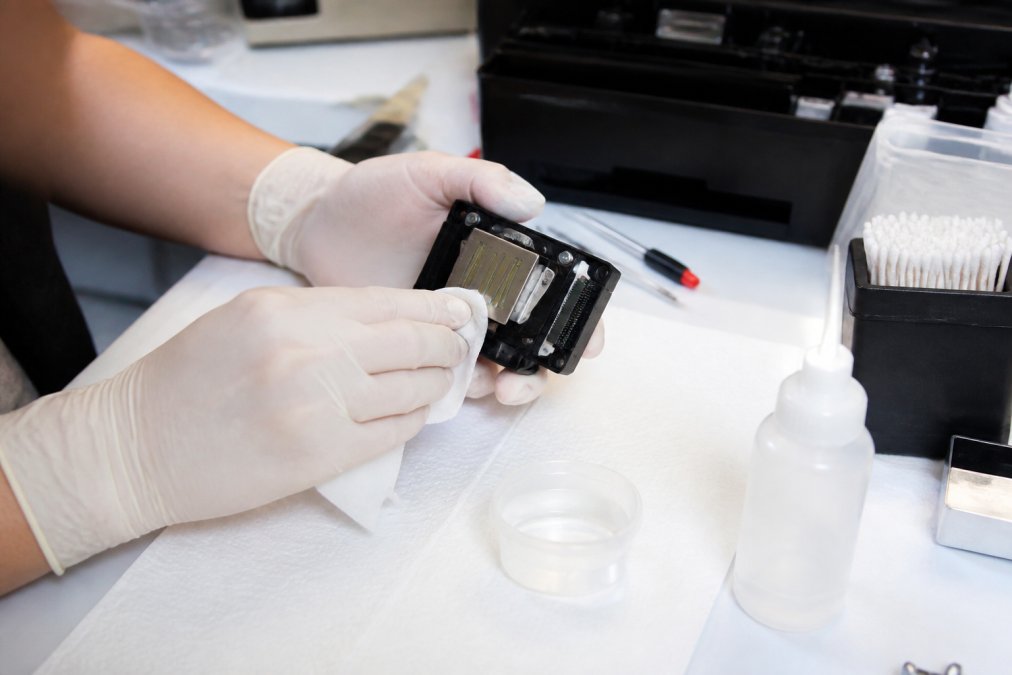
What You Need for a Safe Manual Clean
Gather the right supplies before you start. You need lint-free cloths, distilled water, a professional printhead cleaning solution, latex gloves, and small syringes or droppers for precise application. Avoid paper towels, cotton swabs with loose fibers, and tap water, which leaves mineral deposits that worsen clogs.
The Step-by-Step Manual Cleaning Process
Start by powering off the printer and unplugging it. Open the cover and gently release the printhead carriage from its locked position. Remove the ink cartridges or ink tanks according to your model's instructions, then carefully lift the printhead assembly free.
Place the printhead on a clean surface with the nozzle plate facing up. Apply a small amount of cleaning solution to a lint-free cloth and gently wipe the nozzle plate to remove dried ink residue. For stubborn clogs, use a syringe fitted with a soft tube to apply solution directly to the nozzle openings and let it soak for 10 to 15 minutes.
Cleaning the Capping Station and Wiper Blade
The capping station and wiper blade are the parts most people forget, yet they directly contact the printhead during idle periods. The capping station seals the printhead to prevent ink from drying, while the wiper blade clears excess ink during cleaning cycles. If either is dirty, it can reintroduce contaminants to a freshly cleaned printhead.
Locate the capping station, usually a rubber piece with a small sponge, beneath where the printhead parks. Use a lint-free cloth moistened with cleaning solution to wipe away accumulated ink residue. Check the wiper blade for dried ink and clean it gently with the same cloth. Let both parts dry completely before reinstalling the printhead.
The Best Cleaning Solution for Epson Printheads: What to Use and Avoid
The best cleaning solution for Epson printheads is a purpose-built printhead cleaning fluid formulated for inkjet technology, preferably one compatible with your ink type. These solutions contain solvents that break down dried ink without damaging the printhead's internal components.
Distilled water works as a mild alternative for light clogs, but it lacks the solvent power needed for pigment or eco-solvent inks. Never use isopropyl alcohol, acetone, or household cleaners. These aggressive solvents can dissolve the adhesives and seals inside the printhead, causing permanent damage.
Chemical safety matters during manual cleaning. Work in a ventilated area, wear gloves to protect your skin, and avoid inhaling fumes from concentrated cleaning solutions. If you use specialty inks like DTF white or eco-solvent, choose a cleaning solution specifically rated for those ink chemistries, as standard aqueous cleaners may not dissolve them effectively.
Epson Printer Maintenance Box Replacement: When and How to Do It
The maintenance box, also called the waste ink pad, collects excess ink flushed during cleaning cycles and routine printing. When it reaches capacity, your printer displays a warning indicating the maintenance box needs replacement. Ignoring this warning stops printing entirely, as the printer refuses to operate with a full waste ink system.
The frequency of maintenance box replacement depends on your cleaning habits and print volume. Heavy users who run frequent cleaning cycles will fill the box faster than light users. A maintenance box replacement is a straightforward procedure on most Epson models, involving removing the old box and installing a new one.
Order a compatible maintenance box for your specific Epson model before the warning appears, so you are not caught without one during a production run. Order a compatible maintenance box for your specific Epson model before the warning appears, so you are not caught without one during a production run.
Preventative Care: Habits That Keep Printheads Healthy for Years
Preventative maintenance is the single most effective way to avoid clogs, and it comes down to consistent habits that maintain Epson printheads rather than occasional deep cleaning. The most important habit is printing regularly, at least once a week, to keep ink flowing through the nozzles.
If you plan to leave your printer unused for more than two weeks, take proactive steps. Run a cleaning cycle and nozzle check before storing it, then cover the printer to prevent dust accumulation. For long-term storage, consider removing ink cartridges and sealing the printhead with a damp lint-free cloth to prevent drying.
Ink quality directly impacts printhead health. Low-quality inks with poor formulation can leave excessive residue or dry unevenly, accelerating clogs. Using compatible, well-formulated inks from a reputable supplier reduces the risk of micro-clogs and banding. Using compatible, well-formulated inks from a reputable supplier reduces the risk of micro-clogs and banding.
Conclusion: Build a Maintenance Routine That Works
A working maintenance routine is not complicated, but it requires consistency and the right approach. Run a nozzle check weekly, use automated cleaning cycles sparingly, and escalate to manual cleaning only when automated cycles fail. Keep your capping station clean and replace the maintenance box before it reaches capacity.
The challenge most users face is knowing when to stop relying on software fixes and intervene manually. Trust the diagnostic pattern, not guesswork, and always verify results with a nozzle check after any cleaning action.
For reliable inks and maintenance components that keep your Epson printheads performing, consider compatible solutions for dye sublimation, DTF, pigment, and eco-solvent printing.
Frequently Asked Questions
How often should I run a printhead cleaning cycle on my Epson printer?
Only run a cleaning cycle when a nozzle check shows clogged or missing nozzles. Running it proactively wastes ink, as each cycle pulls ink through the system and into the waste ink pad. If your printer sits unused for more than a week, run a nozzle check first. For regular use, a weekly nozzle check is a good habit to catch clogs before they harden.
Can I use rubbing alcohol to clean Epson printer heads?
Avoid rubbing alcohol. It can be too harsh for Epson printheads and may damage the delicate components or react poorly with the ink. Use a cleaning solution specifically formulated for inkjet printheads, or distilled water for light clogs. For stubborn blockages, a purpose-made solution is the best cleaning solution for Epson printheads because it breaks down dried ink without harming the head.
Why is my Epson printer not printing properly after head cleaning?
This usually means the cleaning cycle pushed air into the ink lines or the clog is too severe for the automated cycle to clear. Start by running a nozzle check to see the current state. If nozzles are still missing, wait a few hours and try another cleaning cycle. If the problem persists, a manual cleaning of the printhead nozzles and capping station is the next step.
What is the average lifespan of an Epson printhead?
With proper maintenance, an Epson printhead can last the life of the printer, often 3 to 5 years or more for home and small office models. The main cause of failure is dried ink from infrequent use. Regularly running nozzle checks, using the printer weekly, and maintaining proper environmental conditions will maximize how long you can maintain Epson printheads properly.